How to secure a WordPress site: what actually stops a break-in
Security sounds like a product you buy. It is mostly four habits and a backup you have tested.

Adam Roe
The short answer
Most WordPress sites are broken into through an out of date plugin or a guessed or reused password, not a clever attack. Keep WordPress, plugins and themes updated, give each person their own login with two-factor on, keep a backup off the server that you have restored once, and put a firewall in front. That covers most of it.
On this page
- Where do WordPress break-ins actually come from?
- Is everything up to date?
- Who can log in, and as what?
- Would your backup actually restore?
- What does a firewall add?
- Two settings worth changing today
- How often does each one need doing?
- What my hosting and maintenance already do about this
- Questions people ask
Good news first: most WordPress sites that get broken into are not the victim of anything clever. It is nearly always a plugin nobody updated, or a password that was guessed or reused from somewhere else. Both are very fixable, and neither needs an expensive security product.
So if you have been wondering how to secure a WordPress site without becoming a security expert, it mostly comes down to four habits: keep everything updated, know who can log in, keep a backup you have actually restored, and put a firewall in front of it. Below is each one, with where the setting lives, how to check it is done, and what happens if it is missed.
If you would rather somebody did the habits for you every month, that is what a website maintenance plan is for. Everything here is still worth knowing either way, because it is also how you check that whoever looks after the site is doing it. Everything below comes from WordPress.org’s own documentation unless it says otherwise, checked in October 2026.
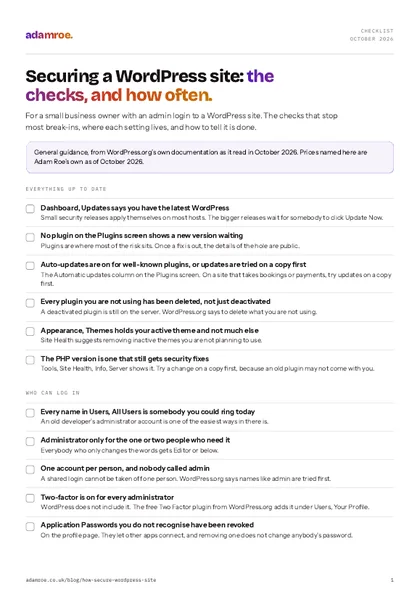 Free checklist, no email needed Securing a WordPress site: the checks, and how often. For a small business owner with an admin login to a WordPress site. The checks that stop most break-ins, where each setting lives, and how to tell it is done. Download the checklist
Where do WordPress break-ins actually come from?
WordPress.org’s hardening guide puts the most common attacks into two groups: requests aimed at known holes in out of date plugins and software, and guessing passwords by brute force. It also says a break-in is rarely down to the server, and “most often attributed to the application itself”, which is the part the site owner looks after.
Where the holes are found says the same thing. Patchstack, a company that sells WordPress security, counts every new hole reported in a year. In its report on 2025, 91% were in plugins and 9% in themes, and only six were in WordPress itself, all of them low priority (State of WordPress Security in 2026, February 2026). It also found that about half of the most serious ones were being attacked within a day of being made public.
So WordPress itself is well looked after. The risk is mostly in what gets added to it, and in who can log in.
The usual ways in
Nearly every WordPress break-in comes through one of these. Each one has a fix that costs an afternoon rather than a product, and the rest of this article goes through them in order.
Is everything up to date?
This is the big one. Once a fix for a security hole is released, the details of the hole are “almost certainly in the public domain”, in WordPress.org’s words, which is why an old version is easier to attack than a new one. There are three things to keep current.
WordPress itself
Since version 3.7, WordPress applies its own minor and security releases in the background, on most hosts, without anyone pressing anything (updating WordPress). Since 5.6, new installs update the bigger releases themselves too, but a site set up before that keeps the old behaviour unless somebody switched it on, so the bigger releases wait for a click on the Dashboard, Updates screen (upgrading).
How to check it: open Dashboard, Updates. It should say you have the latest version of WordPress. If it shows an older one and a button, background updates are not reaching the site, and Tools, Site Health will usually say why.
What goes wrong if it is missed: a site a few releases behind is fine for a while, then a security release comes out that it cannot take, because the jump has got too big to make without testing.
Plugins and themes
Plugins are where most of the risk sits, so they get the most care. Since WordPress 5.5, each plugin and theme can be set to update itself (auto-updates). On the Plugins screen there is an Automatic updates column with an “Enable auto-updates” link on each row, and themes have the same link when you click a theme on Appearance, Themes. WordPress then checks twice a day and emails you when something has updated.
My view: on a brochure site, auto-updates on well-known plugins are better than updates nobody applies. On a site that takes bookings or payments, update on a copy of the site first and click through it, because a plugin update is somebody else’s code arriving on your live site.
Then delete what you are not using. WordPress.org is plain about it: “if you are not using a specific plugin, delete it from the system.” A deactivated plugin is still sitting on the server, and so is a theme you tried once in 2022. Site Health suggests removing inactive themes too.
How to check it: the Plugins screen shows no “new version available” notices, every plugin listed is one you can name a reason for, and Appearance, Themes has your active theme and not much else.
What goes wrong if it is missed: an abandoned plugin nobody remembers installing is the classic way in, because nobody is looking at it and nobody updates it.
PHP, underneath it all
PHP is the language WordPress runs on, and the host runs it, not WordPress. Old versions stop getting security fixes on a published timetable.
WordPress recommends PHP 8.3 or greater (requirements). On PHP’s own timetable, 8.1 and older get no security fixes at all, and 8.2’s end on 31 December 2026 (supported versions). It matters more than usual this autumn: on 21 October 2026 PHP released fixes for two critical holes, and WordPress.org’s note said they “affect any server that hosts a PHP application” and that no WordPress update was needed (critical PHP security release). That fix is the host’s job, which is worth knowing when you choose one.
How to check it: Tools, Site Health, Info, then the Server section shows the PHP version. Changing it is usually a dropdown in your host’s control panel. Try it on a copy of the site first, because a plugin last updated years ago may not come with you.
What goes wrong if it is missed: everything above can be perfectly up to date and still sit on a version of PHP nobody is fixing.
Who can log in, and as what?
Open Users, All Users, and read the list. Every name should be somebody you could ring today, with the role they actually need.
WordPress has a handful of built-in roles (roles and capabilities). An Administrator “has access to all the administration features”, which includes installing plugins and adding more administrators. An Editor can publish and manage everyone’s posts and pages, and is plenty for most people who only change the words. So:
- One account per person. A shared login means you cannot remove one person without changing it for everyone, and you cannot tell who did what.
- Administrator only for the one or two people who need it. Everybody else gets Editor or below.
- Remove whoever has left, including the developer who built the site and the agency before them. WordPress.org’s advice is to “demote or remove legacy users”. An old administrator account with a password nobody has changed in years is one of the easiest ways in there is.
- Not “admin” as a username. WordPress.org says to avoid easily guessed names like admin or webmaster, “because they are typically subject to attacks first”.
Passwords and two-factor
The NCSC’s guide for small organisations names “your company website” among the accounts to protect first, and asks for a strong password and two-step verification on it (secure your important online accounts). Its idea of a strong password is three random words, kept in a password manager so that every account has its own. Protect the email inbox on each administrator account the same way, because that is where a password reset goes.
WordPress itself does not include two-factor login. WordPress.org’s brute force page says so plainly, and recommends adding it for every administrator. The free Two Factor plugin, published by WordPress.org, adds it under Users, Your Profile, Two-Factor Options. Use an authenticator app, and save the backup codes somewhere safe so nobody gets locked out.
While you are on the profile page, look at Application Passwords. They let other apps connect to the site, and any you do not recognise can be revoked there without changing anybody’s password.
How to check it: every administrator has two-factor switched on, and the Users list has nobody you would not recognise.
What goes wrong if it is missed: a password reused from another site that leaked is the same as no password at all, and the login page is tried by bots all day, every day.
Would your backup actually restore?
A backup nobody has restored is a file, not a backup. You find out which one you have on the worst possible day.
WordPress.org’s hardening guide gives the reason to keep several backups rather than one: if a site is broken into on 1 May and nobody notices until 12 May, a week of daily backups means there is still a clean copy from before it happened. WordPress.org’s backup page adds that a backup needs both the database and the files to restore a site, and suggests keeping three to five recent ones in different places. The NCSC says the same of any business backup: know how to restore it, and “check that it contains all your important data” (backing up your data).
Why one backup is not enough
WordPress.org's own example: a site broken into on 1 May and not noticed until 12 May. With only last night's backup, the copy you restore already has the problem in it. With a few weeks of them, there is a clean one from before.
So, three things:
- Daily, automatic, and kept off the server. A backup sitting on the same server as the site goes down with it.
- Several of them, going back at least a couple of weeks, so there is always one from before the problem.
- Restored once, onto a copy of the site, and opened. That is the only way to know the backup has everything in it.
How to check it: restore last night’s backup onto a staging copy, or a spare corner of the hosting, and click through the pages and a form.
What goes wrong if it is missed: the backup turns out to be missing the database, or the uploads, or it is from after the break-in.
What does a firewall add?
A firewall sits between the internet and the site and turns away requests that look like attacks. WordPress.org describes three places one can go: a plugin inside WordPress, software on the web server, or a service in front of the whole site that all traffic passes through first. Its brute force page prefers the last two, “so bad traffic is blocked before it reaches your server”.
A firewall takes away most of the noise: the bots trying passwords all night, and requests aimed at holes that are already well known. It is a second line rather than a replacement for the updates, though. Patchstack points out that some attacks look just like a logged-in user doing something ordinary, which no firewall can tell apart.
How to check it: ask your host whether there is a firewall in front of the site, and whether it limits repeated login attempts. Many managed WordPress hosts include one. If the answer is no, a service in front of the site, or a well-known security plugin as a second best, closes the gap.
What goes wrong if it is missed: the login page and every plugin’s known holes get tried by bots around the clock, and the only thing in the way is whether everything above was done.
Two settings worth changing today
Switch off the file editor
Out of the box, an administrator can edit the site’s code from inside the dashboard. WordPress.org calls it “often the first tool an attacker will use if able to login”. One line in the site’s wp-config.php file turns it off:
define( 'DISALLOW_FILE_EDIT', true );How to check it: the Theme File Editor and Plugin File Editor no longer appear in the menus. Nothing else on the site changes.
Make sure it is all on https
Settings, General has two addresses, WordPress Address and Site Address. Both should start with https://. WordPress counts the site as being on HTTPS when both do, and if the server already supports it, Site Health shows a button that switches the site over in one click (HTTPS in WordPress 5.7). Without it, logins travel unencrypted and browsers show “Not secure” next to the address (HTTPS).
How to check it: both addresses start https, and the padlock shows on every page, including the login page.
How often does each one need doing?
Once it is set up, the habits are small. Laid out across a year, they look like this.
The habits, by the calendar
Updates are the only weekly job. Who can log in is worth a look every month, a test restore every quarter, and the PHP version once a year. Everything else on this page is done once and then left alone.
If the site was handed to you by somebody else, the WordPress handover checklist is the list for making sure the accounts and licences are in your name first. And if you are weighing up what a monthly plan should actually cover, what a website care plan covers, month by month sets it out.
What my hosting and maintenance already do about this
- Hosting, £50 a month, has a firewall in front of the site, malware scanning in real time with anything found patched, a backup every day made by the host, uptime and security monitoring, and the updates every month with a check afterwards. If an update breaks something, the site is put back first and looked at second. That is WordPress hosting.
- WordPress maintenance is Manage at £300 a month, or £350 with hosting: updates tried on a staging copy before they reach the live site, a backup restored onto staging to prove it works, PHP kept current, and a look every month at who has an account and what role they hold. The details are on WordPress maintenance.
- What I would do first on a site I did not build is a take-on check, £200 for half a day: what it runs on, what is out of date, what the plugins cost, and who still has access, in writing, whether or not you carry on with me.
- If the site has to stay where it is, and the check finds the hosting can be backed up and rolled back, updates only is £75 a month.
Before you ask
Questions people ask.
01 Do I need a security plugin?
Not always. A security plugin can add a firewall, limits on login attempts and malware scanning, but it runs inside WordPress, so it only sees an attack once the attack has reached your site. A firewall at the host, or a service in front of the site, stops it earlier. If the host already does that, one plugin for two-factor login is often all you need. Two security plugins on one site tend to get in each other’s way.
02 How often should WordPress be updated?
Security releases as soon as they come out, and everything else at least once a month. In the twelve months to October 2026 WordPress itself put out 14 releases, eight of them security fixes, and plugins add their own on top. WordPress applies its small security releases automatically on most hosts, but plugins and themes without auto-updates switched on wait for somebody. A site left for six months is the worry, not one a week behind.
03 Is managed WordPress hosting more secure?
Usually, because the host takes some of the jobs off you: a firewall in front of the site, malware scanning, backups kept off the server and a current version of PHP. What it does not do is choose your plugins, remove the old developer’s account or stop somebody logging in with a password reused from somewhere else. Read what the plan actually includes, then do the rest of the list yourself.
04 Does website maintenance include security?
On WordPress, most of it should. Here, hosting at £50 a month includes a firewall, malware scanning, a daily backup, monitoring and the monthly updates. WordPress maintenance adds updates tried on a staging copy first, a backup restored to prove it works, PHP kept current and a monthly look at who can log in. Squarespace, Wix and Shopify look after their own platform security, so there it is mostly about the logins.
If you are not sure who can log in to your site, or when it was last updated, don’t worry. That is the most common thing I find, and it is all checkable in an afternoon.
Tell me where the site is and I will tell you what I would look at first. If anything needs putting right, I can get that sorted.
adamroe.